
Help.
Short videos that show how to do the most common tasks. Each one is silent, with captions, and its steps are written out below it.
The clinics, jobs and people in these videos are made-up examples, not real ones.
For clinics.
Post a job
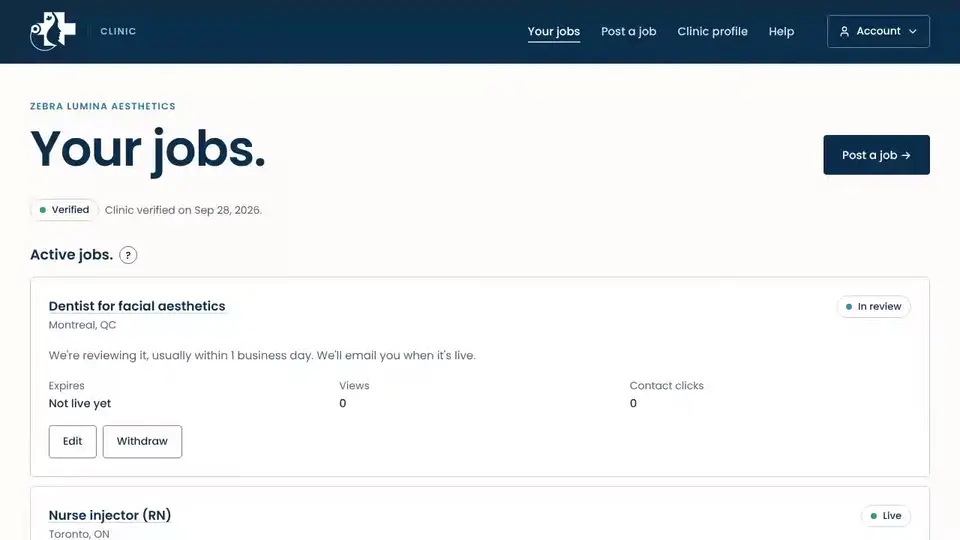
Fill in the job form and send it to CAMA for review.
Read the steps
- On Your jobs, press Post a job.
- Give the job a clear title.
- Choose everyone who can apply.
- Add the job type and the pay.
- Describe the role. Leave out phone numbers, emails and links.
- Check the location and how grads should reach you.
- Press Post job.
- Sent. CAMA reviews it, usually within 1 business day.
Renew, mark filled or withdraw a job
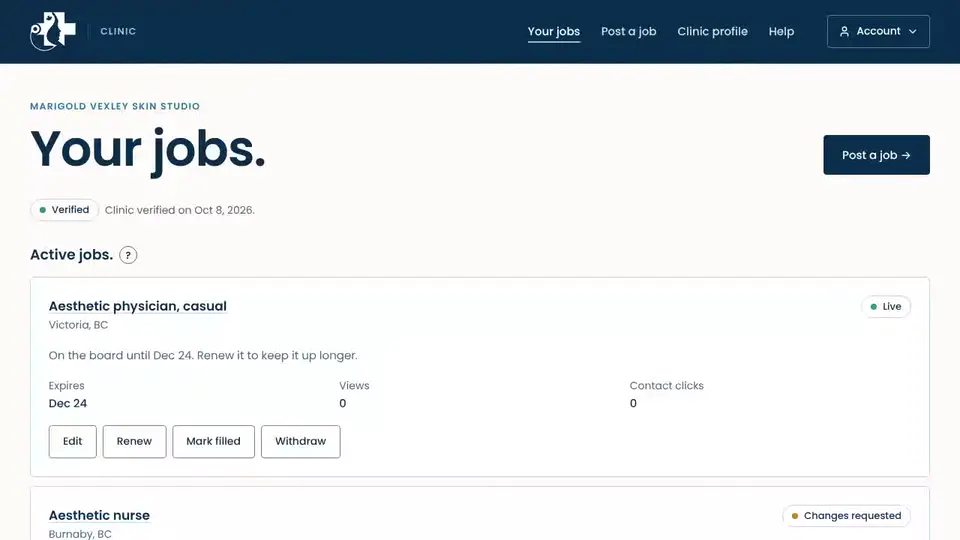
Put an ended job back up, or take a job down when you are done hiring.
Read the steps
- Your jobs shows what is live and what has ended.
- Renew puts an ended job back up for a full posting period.
- Hired someone? Press Mark filled.
- Say if you hired a CAMA grad. It is optional.
- No longer hiring? Press Withdraw.
- Both take the job down right away.
For CAMA staff.
Review a job
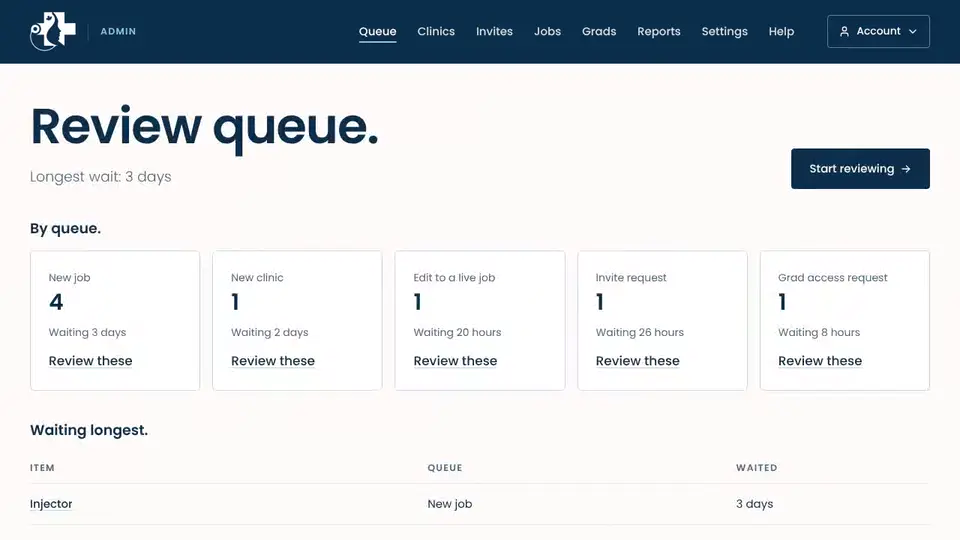
Read the AI check, approve with the A key, or send a job back with a reason.
Read the steps
- The queue lists everything waiting for a decision.
- Open the job you want to review.
- The AI check only gives advice. You decide.
- Read the job. Press A to approve it.
- Approved. It is live, the clinic gets an email, and the next item opens.
- This one needs work. Press C to request changes.
- Pick a reason, or write your own.
- Send it. The clinic can fix it and send it again.
Invite a clinic
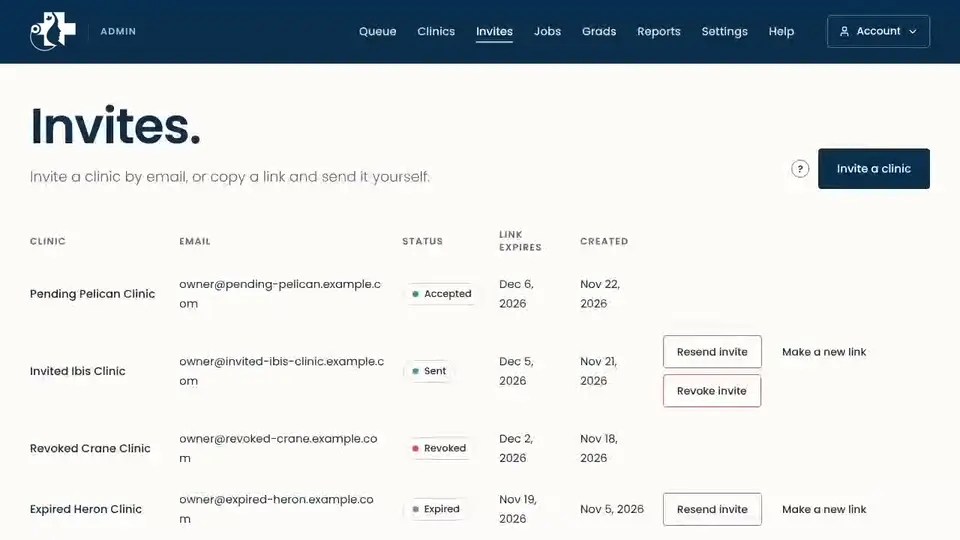
Send a clinic an invite link so it can set up and post jobs.
Read the steps
- Go to Invites and press Invite a clinic.
- Enter the email to invite and the clinic name.
- Choose to send the invite email now.
- Press Send email.
- The invite is listed here until the clinic accepts it.
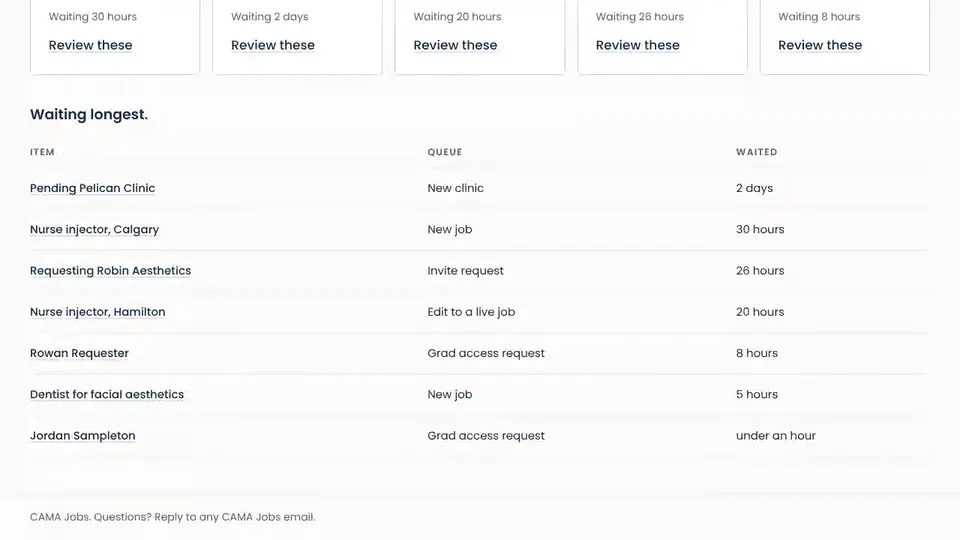
Approve a grad's access request
Check who is asking, link their contact in GHL (CAMA's contact list) if it matches, and let them in.
Read the steps
- Open the access request from the queue.
- Check what the person told us.
- If a contact in GHL, CAMA's contact list, is clearly the same person, choose it.
- Press Approve access. They can sign in now, and the next item opens.
Upload past grads
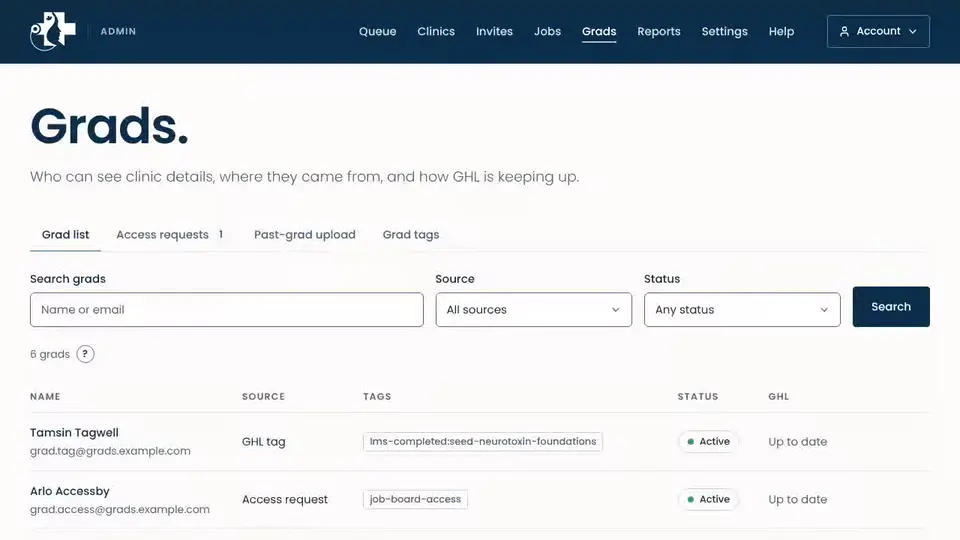
Add graduates from a CSV file so they can sign in.
Read the steps
- Go to Grads, then Past-grad upload.
- Choose a CSV file with email, first name and last name.
- Press Preview. Nothing changes yet.
- Check the counts and any rows to fix.
- Press Add to the list.
- New grads can sign in now. GHL, CAMA's contact list, is updated in batches.
For grads.
Sign in and see how to reach a clinic
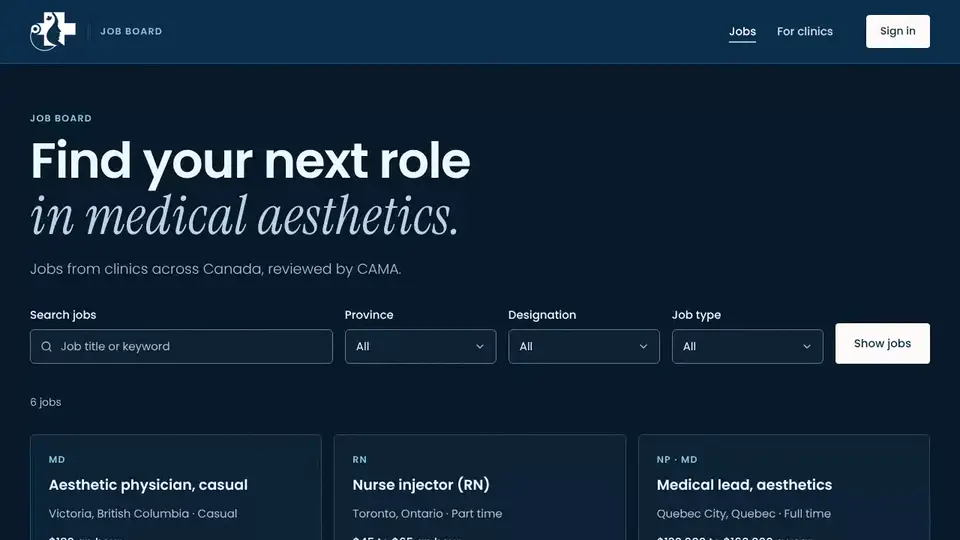
Sign in with an emailed code, then show a clinic's contact details.
Read the steps
- Press Sign in.
- Enter the email you gave CAMA, then press Send my code.
- Check your email for an 8-digit code, and type it in.
- You are signed in. Open a job.
- Signed in, you see the clinic. Press Show contact.
- Call or email the clinic yourself.
Ask for access
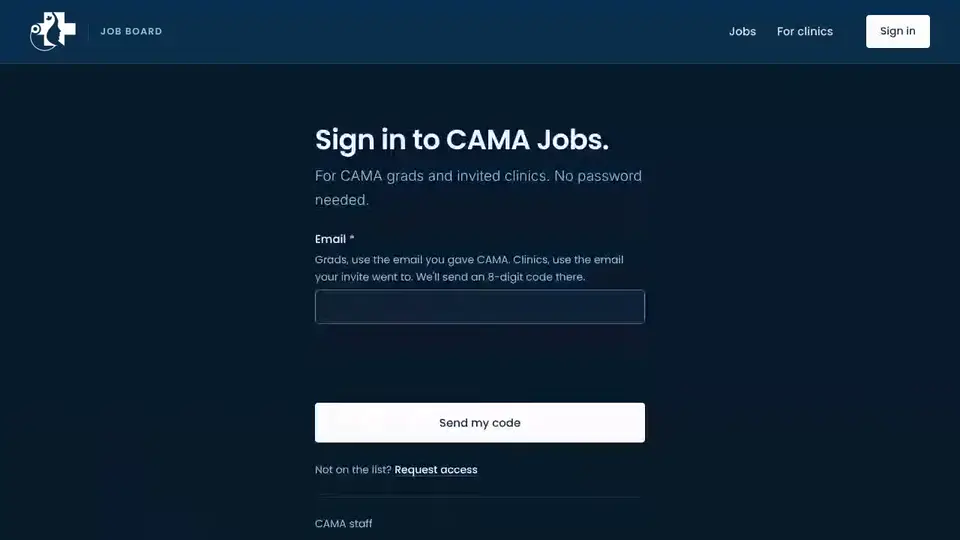
Graduated from CAMA but can't sign in? Ask us to check.
Read the steps
- On Sign in, choose Request access.
- Enter your full name and your email.
- Add your program and the year you finished, if you can.
- Press Request access.
- We check and email you within 1 business day.
Still stuck? Reply to any email from CAMA Jobs and we will help.